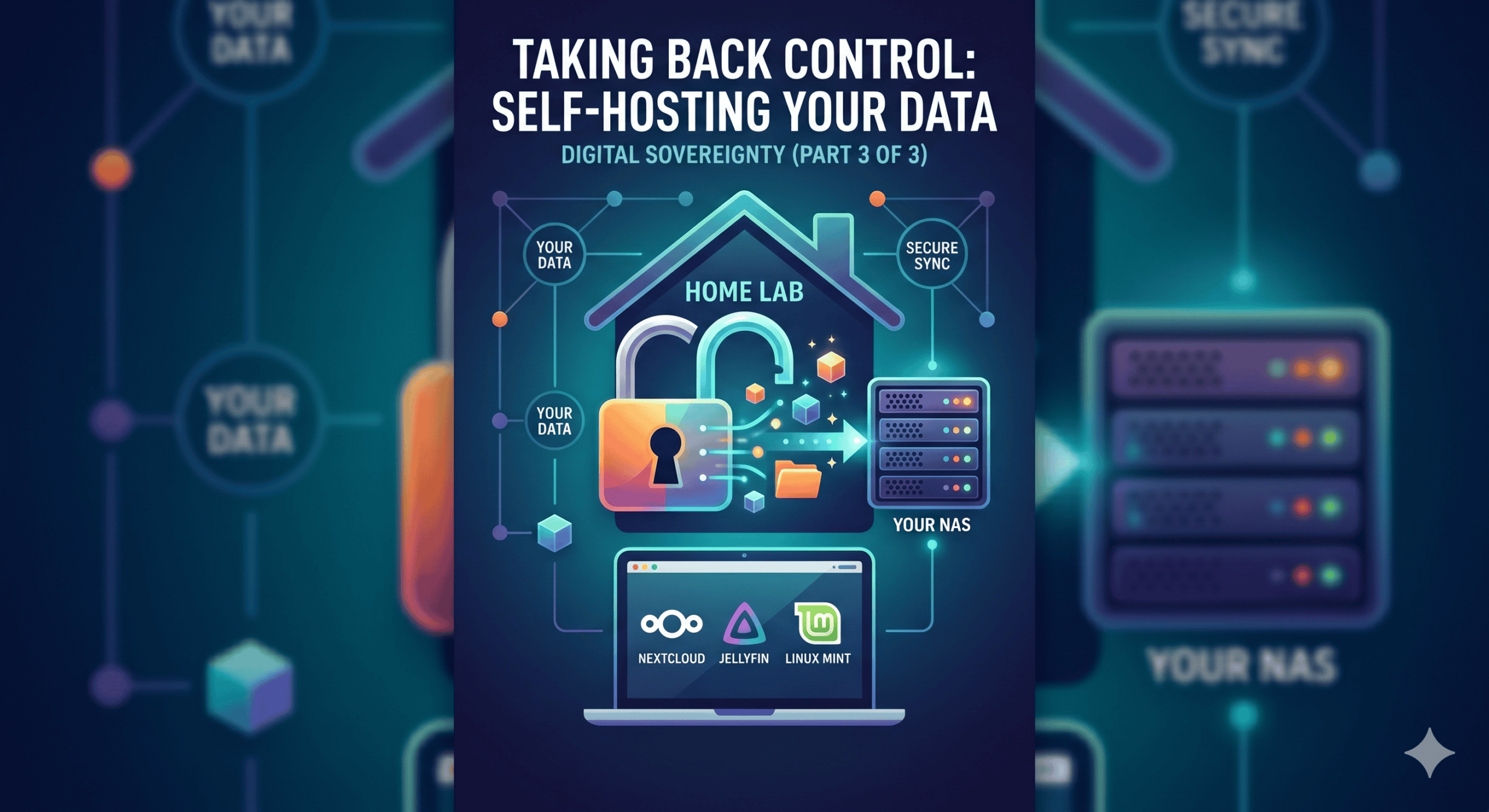
Self-Hosting: Taking Your Data Off Someone Else’s Servers
You’ve locked down your passwords, encrypted your connection, and hardened your browser. Good. Now it’s time to address the elephant sitting in every room: where your data actually lives.
Every photo you upload to Google Photos, every document you stash in OneDrive, every video you share through iCloud — that data sits on someone else’s hardware, under someone else’s terms of service, in someone else’s jurisdiction. You agreed to those terms. Did you read them? Of course you didn’t. Nobody does. And that’s exactly how they want it.
The move here is straightforward in concept but requires some effort in execution: self-host your own data. This means running your own storage, your own collaboration platform, and your own services — either on hardware you physically control or on infrastructure you rent from providers who aren’t in the business of monetizing your metadata.
Local NAS: Your Data, Under Your Roof
A Network Attached Storage device is exactly what it sounds like: a box of hard drives sitting on your local network, serving files to whatever device needs them. No cloud middleman. No subscription fee that increases 20% annually because “market conditions.” Just disks, power, and a network cable.
For hardware, you have options depending on your comfort level. Pre-built NAS units work out of the box but lock you into vendor ecosystems. Building your own from repurposed hardware gives you total control and breathes new life into older machines that would otherwise end up in landfills. I’ve covered this in detail in my earlier posts on repurposing old computers as home lab servers and what’s changed in my own setup over time. The beauty of DIY is that you’re not paying for software licenses bundled into hardware you don’t need.
What goes on your NAS? Everything that currently lives in someone else’s cloud. Photos and videos — use self-hosted solutions like Immich or PhotoPrism to replace Google Photos,. Your memories don’t belong in Google’s training data. Documents — Nextcloud handles file sync, sharing, and collaboration, and I’ll get into that shortly. Backups — your NAS should also be the backup target for all your devices. Use whatever backup solution fits your stack, whether that’s rsync, borg, or native tools.
Critical point: a NAS without off-site backups is a single point of failure. If your house floods, catches fire, or gets burglarized, that NAS is gone. You need at minimum one additional copy stored elsewhere — either another NAS at a different location, or encrypted backups to a VPS or object storage like BackBlaze. The 3-2-1 rule applies: three copies, two different media types, one off-site.
Nextcloud: Your Private Cloud, Your Rules
Nextcloud is the centerpiece of a self-hosted digital life. It replaces Google Drive, OneDrive, Dropbox, and a growing list of SaaS tools — all running on infrastructure you control.
There are two deployment paths. First, on your local NAS — many NAS operating systems offer Nextcloud via their package centers, or you can run it in Docker. This keeps everything local, fast, and offline-capable. The trade-off is remote access: you’ll need to expose services securely through a reverse proxy, VPN, or Tailscale if you want to reach your files outside your network. Second, on a VPS — this is where providers like Hetzner, Contabo, and OVHcloud come in. You rent a virtual server, install Nextcloud (many of these providers even offer one-click Nextcloud images), and you’ve got a cloud that’s accessible from anywhere but still yours. Hetzner’s CX-series instances start at around €4/month. Contabo offers ridiculous specs for the price. OVHcloud has solid EU infrastructure. All three are EU-based, GDPR-compliant, and none of them are in the business of reading your mail.
My recommendation? Run both. Use your local NAS as the primary storage with Nextcloud for sync and collaboration, and mirror critical data to a VPS instance for redundancy and remote access. Nextcloud‘s external storage support and sync capabilities make this relatively painless.
As for what Nextcloud actually replaces — Nextcloud Files replaces Google Drive and OneDrive. Nextcloud Office, powered by Collabora or LibreOffice Online, replaces Google Docs and Office Online. Nextcloud Calendar replaces Google Calendar. Nextcloud Contacts replaces Google Contacts. Nextcloud Photos replaces Google Photos, though pairing it with Immich gives you a better experience. Nextcloud Talk replaces Slack and Teams chat. And Nextcloud Sharing replaces Dropbox’s/Google Drive file sharing. Is the web-based office experience as polished as Google Docs? No. That’s the honest trade-off. But it works, it’s getting better rapidly, and — critically — your documents aren’t being scanned, indexed, or fed into anyone’s AI training pipeline.
SMB for Windows Users: The Bridge While You Transition
Here’s the reality: most people reading this are on Windows right now. Their families are on Windows. Their workplaces are on Windows. You can’t just rip that out overnight and expect everything to function.
SMB, Server Message Block, is the file-sharing protocol Windows speaks natively. Your NAS — whether pre-built or DIY — supports SMB out of the box. This means Windows users on your network can map network drives, browse shared folders in File Explorer, and work with files on the NAS exactly as if they were local.
Set this up first. Before anyone touches Linux, before anyone migrates anything, get a NAS running, enable SMB shares, and start redirecting “My Documents,” photo libraries, and working files to the NAS. This achieves two things. Data centralization — everything is on your hardware immediately, even if the client OS is still Windows. And habit formation — people get used to storing data on the NAS, which makes the eventual OS migration far less painful because the data layer is already decoupled from the OS.
Configure SMB3 with encrypted transport where possible. Disable SMB1 everywhere — it’s a security disaster and has been since WannaCry. On most NAS operating systems, this is a checkbox. On DIY setups, it’s a configuration option. Do it.
The Linux Migration: Not If, But When
Let’s address the obvious. Windows 10 reached end of life on October 14, 2025. After that, no more security updates. Zero. I’ve written about surviving Windows 10 EOS with practical tips and workarounds, but the reality is that staying on unsupported software is a gamble you shouldn’t take. And Windows 11? Its hardware requirements — TPM 2.0, Secure Boot, specific CPU generations — have rendered millions of perfectly functional PCs “unsupported.” Microsoft’s message is clear: buy new hardware or run an insecure operating system.
This is not a bug. It’s a feature — for Microsoft. Planned obsolescence dressed up as security innovation. Every PC that can’t run Windows 11 is a potential Linux convert, and the industry knows it.
So here’s the pragmatic approach: migrate gradually, not catastrophically.
Phase one is dual boot or live USB. Don’t nuke Windows yet. Install Linux alongside it, or boot from a live USB to test the waters. This lets people fall back to Windows when something doesn’t work, which reduces the anxiety that kills most migration attempts.
For recommended distros, Linux Mint Cinnamon edition is the closest thing to a Windows desktop experience. Start menu, taskbar, system tray — it’s familiar. Based on Ubuntu, so software availability is excellent. This should be the default recommendation for anyone coming from Windows. Ubuntu itself is the most widely supported distro with a larger community, more documentation, and more troubleshooting resources. The GNOME desktop takes some adjustment, but it’s well-polished. Fedora is more cutting-edge while still stable, better for users who want newer software versions and don’t mind slightly more frequent updates, with excellent Wayland support. Pop!_OS is the pick if the user is on a System76 machine or wants a curated experience with good GPU support, especially NVIDIA.
For older hardware that chokes on modern desktop environments, Xubuntu or Lubuntu offer lightweight XFCEor LXQt desktops that run comfortably on 2GB RAM and decade-old CPUs. Linux Mint XFCE gives you the same Mint familiarity with a lighter resource footprint. Debian with XFCE delivers rock-solid stability and minimal resource usage — not as beginner-friendly, but it runs on anything.
These distros breathe life into hardware that Windows 11 refuses to touch. A 2015 laptop with 4GB RAM and a spinning drive is unusable under Windows 10 in 2025. Under Linux Mint XFCE? Perfectly functional for browsing, email, document editing, and Nextcloud sync.
Phase two is replacing online-only apps. The biggest barrier to Linux adoption isn’t the OS itself — it’s the apps people think they need. Here’s the thing: most “must-have” Windows applications have equivalent or superior Linux replacements, and many of the apps people use daily are just Electron-wrapped web apps anyway. LibreOffice, OnlyOffice, or Nextcloud Office replace Microsoft Office. Thunderbird or Betterbird replace Outlook. Firefox, Brave, or Chromium replace Chrome and Edge. GIMP and Krita replace Adobe Photoshop. Inkscape replaces Adobe Illustrator. Kate, GNOME Text Editor, or literally any terminal editor replace Notepad. Nemo, Nautilus, or Dolphin replace Windows Explorer. VLC is on Linux too. Lot of apps has a native Linux client or works through the browser. And Steam with Proton runs most Windows games now.
The online-only reality: how many of your daily “apps” are just bookmarks? Gmail, Google Docs, Facebook, Twitter/X, banking portals, project management tools — these all run in a browser. The operating system underneath is increasingly irrelevant. Once someone realizes that 80% of what they do happens in Firefox or Brave, the OS switch becomes far less intimidating.
For the remaining Windows-only software — and there will be some, particularly niche business applications — there’s Wine, Bottles which is a Wine frontend that makes configuration manageable, and virtual machines through VirtualBox or GNOME Boxes for the truly stubborn cases. It’s not perfect, but it covers most scenarios.
Phase three is cutting the cord. Once the user is comfortable in Linux for daily tasks, once their data lives on the NAS and syncs through Nextcloud, once they’ve verified that all their critical workflows function — remove Windows. Reclaim the disk space. Stop dual-booting. Commit.
This is the point of no return, and it’s where the real sovereignty begins. No more forced updates. No more telemetry you can’t disable. No more Microsoft account nag screens. No more hardware that’s “unsupported” because it lacks a TPM chip.
Media Sovereignty: Your Own Streaming Service
If you’re worried about migrating your media collection, don’t be. You don’t need Netflix or Disney+ to watch the movies and series you legally own. Open-source solutions like Jellyfin exist to fill that gap perfectly.
Jellyfin is a free, open-source media server that organizes your local video files into a beautiful library with metadata, posters, and descriptions. It works natively in any web browser, so you can stream from your computer without installing anything. For mobile, there are dedicated apps for Android and iOS. For the living room, there are clients for almost every Smart TV, Android based Smart TV’s, Apple TV, and gaming console.
The best part is how it handles remote access. You don’t need to open dangerous ports on your router or deal with complex port forwarding. By pairing Jellyfin with Tailscale, a free mesh VPN solution, you can access your entire media library from anywhere in the world as if you were sitting on your couch at home. Tailscale creates a secure tunnel between your device and your NAS, meaning you can stream your legally obtained DVD rips to your phone on the train or your tablet at a hotel without exposing your home network to the public internet. It’s your own private Netflix, built on hardware you own, with no subscription fees and no algorithmic manipulation.
MFA Done Right (Not Done Microsoft’s Way)
I promised this in Part 2, and it matters enough to repeat: multi-factor authentication is non-negotiable, but how you implement it determines whether you’re securing your accounts or just adding friction.
At the top of the hierarchy are hardware security keys. YubiKey 5 series or Nitrokey, the open-source alternative. This is the gold standard — phishing-resistant, doesn’t rely on SMS or phone apps, works with FIDO2/WebAuthn. Buy two. One primary, one backup stored securely. Register both to every account that supports them. Below that are TOTP apps — Aegis on Android, Ente Auth which is cross-platform and open-source, Proton Authenticator if you’re already in the Proton ecosystem and want everything under one roof, or KeePassXC’s built-in TOTP feature. Avoid Google Authenticator and Microsoft Authenticator. They’re proprietary, and Google’s version doesn’t even offer encrypted E2EE backups. Your 2FA secrets should not live in a Google-controlled app. At the bottom is SMS — better than nothing, but SIM swapping attacks are trivial for determined attackers. Use SMS only for services that offer no other option.
The break-glass scenario for MFA: what happens when you lose your YubiKey and your phone in the same incident? You need recovery codes — those one-time-use backup codes that services generate when you enable 2FA. Store them in your password manager. Print them on paper stored in a physical safe. Keep an encrypted copy on your NAS. Redundancy saves you when everything goes sideways.
Avoid passkeys stored exclusively in a single ecosystem. If you use hardware security keys, your passkeys are portable — you own them, not the platform vendor. This distinction matters enormously for sovereignty.
Domain Ownership: Your Address on the Internet
One more piece of the puzzle: own your domain. Using @gmail.com or @outlook.com as your permanent email address means you’re building your digital identity on rented land. The landlord can evict you at any time, for any reason, with no appeal.
Register a domain through a registrar that respects your privacy. Look for ones that include WHOIS privacy protection by default, don’t sell your contact information to third parties, and are transparent about their data practices. EU-based registrars often have stronger GDPR protections built in, which can be a useful starting point for evaluation.
Point that domain at your Proton Mail account — custom domain support is available on paid plans — or at a self-hosted mail server if you’re feeling ambitious, though I’d strongly recommend Proton for email. Running your own mail server is a commitment most people underestimate.
Your domain. Your email. Your identity. Not Google’s. Not Microsoft’s. Yours.
The Honest Summary
Self-hosting isn’t easy. It requires time, patience, and a willingness to troubleshoot at 11 PM when something stops working. The initial setup of a NAS, Nextcloud instance, Linux migration, and media server will take a weekend — maybe several. There will be friction. There will be moments where you question why you’re doing this when Google Drive “just works.”
Here’s why: because “just works” comes with a price you can’t see. Your data is the product. Your habits are the inventory. Your attention is the revenue stream. Every free gigabyte of Google storage is paid for by the advertising profile built from every file you upload, every search you make, every email you send.
Digital sovereignty isn’t about convenience. It’s about control. You decide who sees your photos. You decide where your documents live. You decide when your hardware becomes obsolete — not a corporation in Redmond or Mountain View. You decide how you watch your movies, without ads, without tracking, and without a monthly bill.
Start with the NAS. Set up SMB shares. Move your data. Deploy Nextcloud. Try Linux on a spare machine or a live USB. Set up Jellyfin for your media. Take it one step at a time. But take the steps.
The water’s fine. Just jump in.
Text checked and rewritten using Proton Lumo+ AI.